

WindZero
WindZero helps Shot Insights react to changing wind instead of relying on a static estimate. Once connected, WindZero drives Live Wind — the app’s name for holds that update automatically from live readings instead of the weather you entered or saved earlier. It uses the same firing solution either way; Live Wind just keeps the wind input current for you. It is most useful when wind shifts often or changes across the distance to target.
Connect WindZero
Section titled “Connect WindZero”- Open Sensors.
- Scan for nearby devices and select your WindZero setup.
- Confirm the live readings are updating.
- Give each wind meter a name as the app detects it — the “New Meter Detected” prompt appears once per meter, so a multi-meter setup gets set up one meter at a time.
- Return to QuickShot or the target list view in Long Range and watch holds update live.
See live wind while you shoot
Section titled “See live wind while you shoot”Once a WindZero is connected, a Live Wind strip appears at the top of your target list — above the first card — in QuickShot, and in Long Range’s list view. It shows:
- Speed and direction: the smoothed average speed, plus an arrow and text like “270° W” showing the direction the wind is coming from.
- Gust and lull chips showing the recent high and low. Your wind hold is shown as a band from the average to the gust, so you can bracket the shot the way you would with a handheld meter.
- Holds update about once per second using a 3–5 second average, so the numbers stay steady instead of chasing every puff.
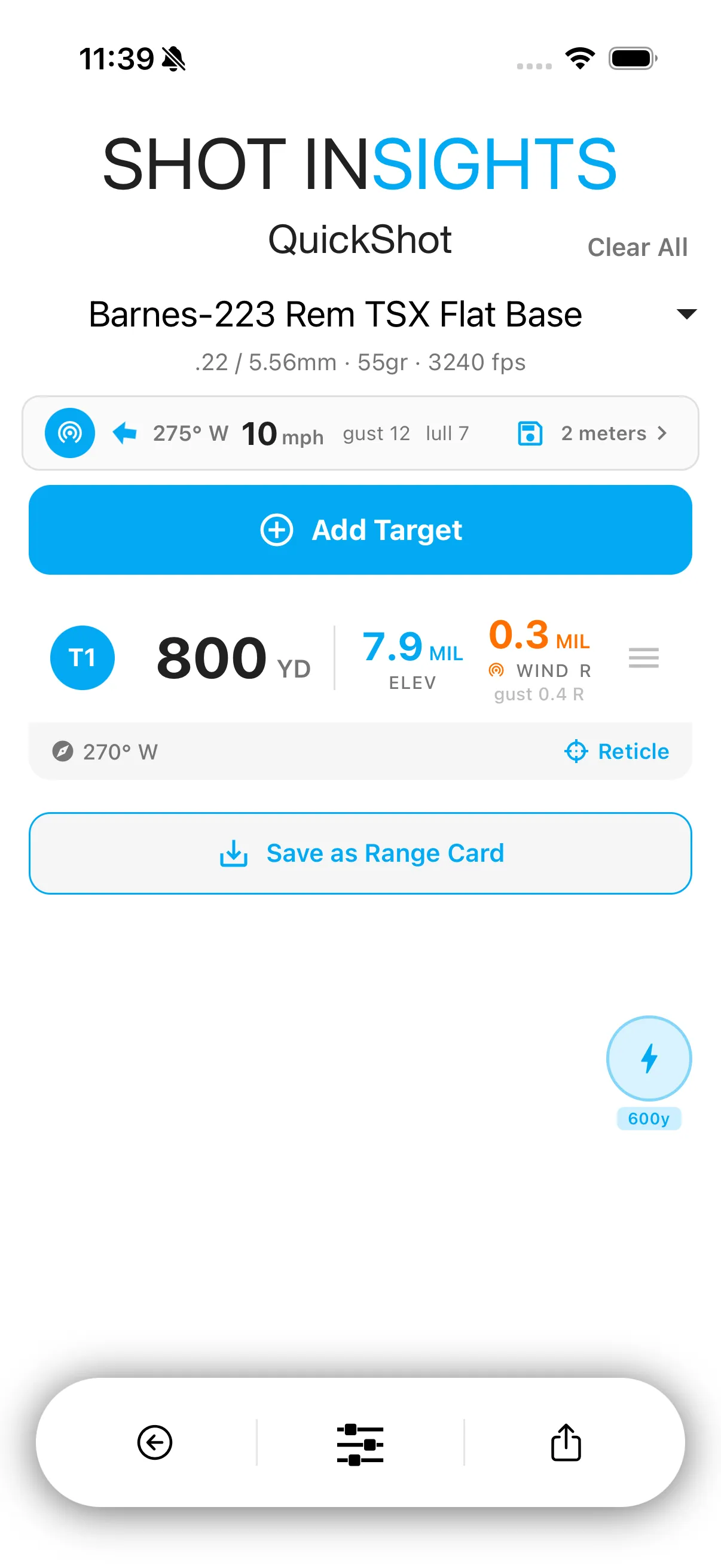
A few things to know about the strip:
- Tap the broadcast icon to turn Live Wind on or off. Turning it off falls back to your saved session conditions.
- STATIC means your meters stopped reporting — holds fall back to your saved conditions until a meter reports again.
- NO METER means the WindZero is connected but no meter is currently reporting.
- In QuickShot, tap the save icon to capture the current wind into your session’s saved conditions — useful before you take the meter down, or when building a printed range card. This capture option isn’t available from Long Range’s strip.
Set up wind zones for multiple meters
Section titled “Set up wind zones for multiple meters”This is available from QuickShot’s Live Wind strip only — Long Range’s strip shows live wind but doesn’t support meter setup.
With one meter connected, its reading applies to the whole bullet flight. With two or more meters at different distances, Shot Insights splits the flight into wind zones so each meter’s reading covers the stretch of flight around it:
- In QuickShot, tap the meter count on the Live Wind strip to open the meter list.
- Tap a meter and set its downrange distance. A distance of 0 means the meter is at the firing line.
- Repeat for each additional meter.
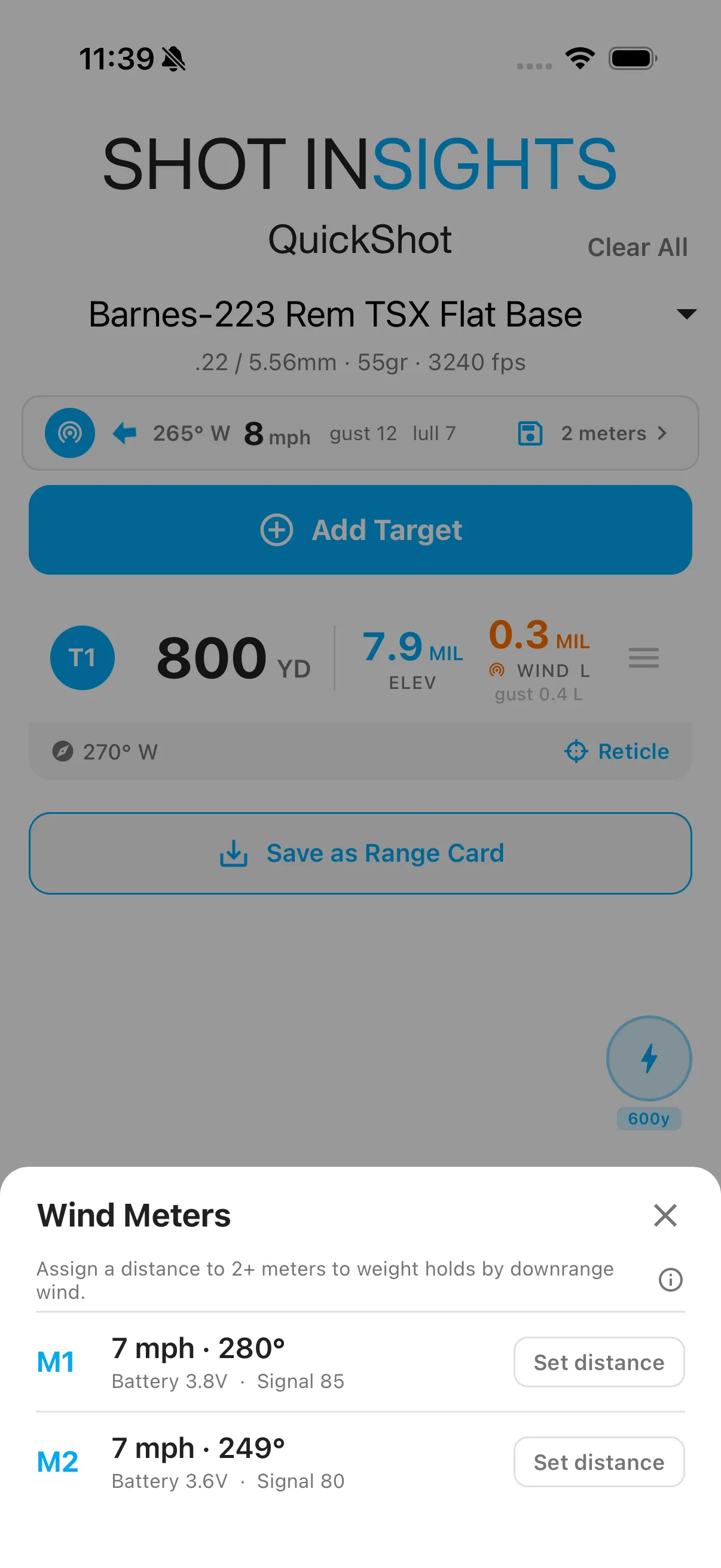
The boundary between two meters is halfway between them. For example, on a 600 yard shot with one meter at the firing line (0 yd) and a second at 500 yd, the firing-line meter’s reading applies out to the 250 yd midpoint, and the downrange meter’s reading applies from there to the target. A typical setup is one meter at the firing line and one downrange near the bullet’s highest point. Terrain matters too: tree lines, berms, and valleys change the wind, so place your meters where each one sits in the middle of the stretch it represents.
Where WindZero helps most
Section titled “Where WindZero helps most”- Days with changing wind
- Longer shots where wind matters more
- Multi-target work where conditions can change while you are still on the clock
- Recheck your readings before a stage starts if conditions are moving.
- QuickShot is a strong companion for WindZero because it shows multiple targets in one list.
- In QuickShot, capture the wind into your session before you break down your WindZero setup, so the conditions stay attached to your session for later review.
- If you do not have a live wind tool available, use manual weather to enter the best estimate you have.
Help improve these docs
With your permission, we use Google Analytics cookies to understand which guides are useful. Analytics is optional. You can change your choice in Analytics preferences at any time. Privacy policy